
AI headshots and portrait tools
The working tools: a clean professional headshot, a cinematic portrait, a studio black-and-white, a 3x3 grid of poses for a carousel, a Polaroid with your younger self, or a new hair colour before you commit to it.
Download & claim your FREE AI generation
Updated

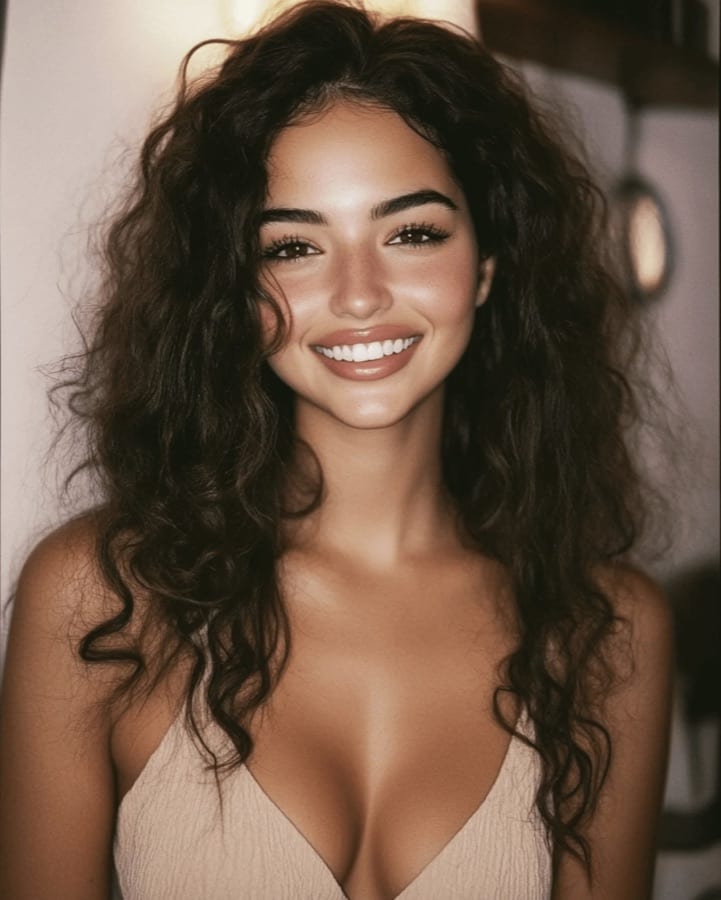 Before After
Toonify ME
Transform your photos into cartoons.

 Before After
AI Headshot
Create professional AI headshots instantly.
 Before After
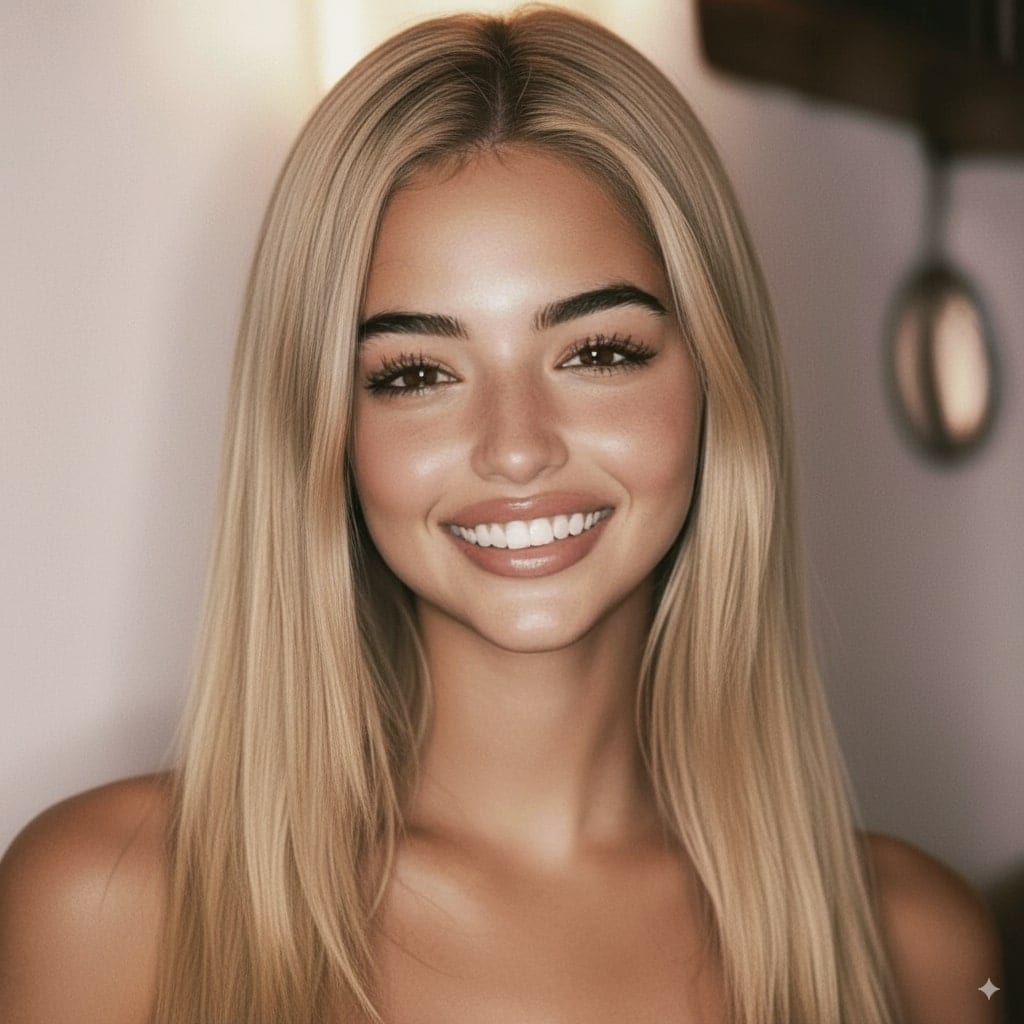
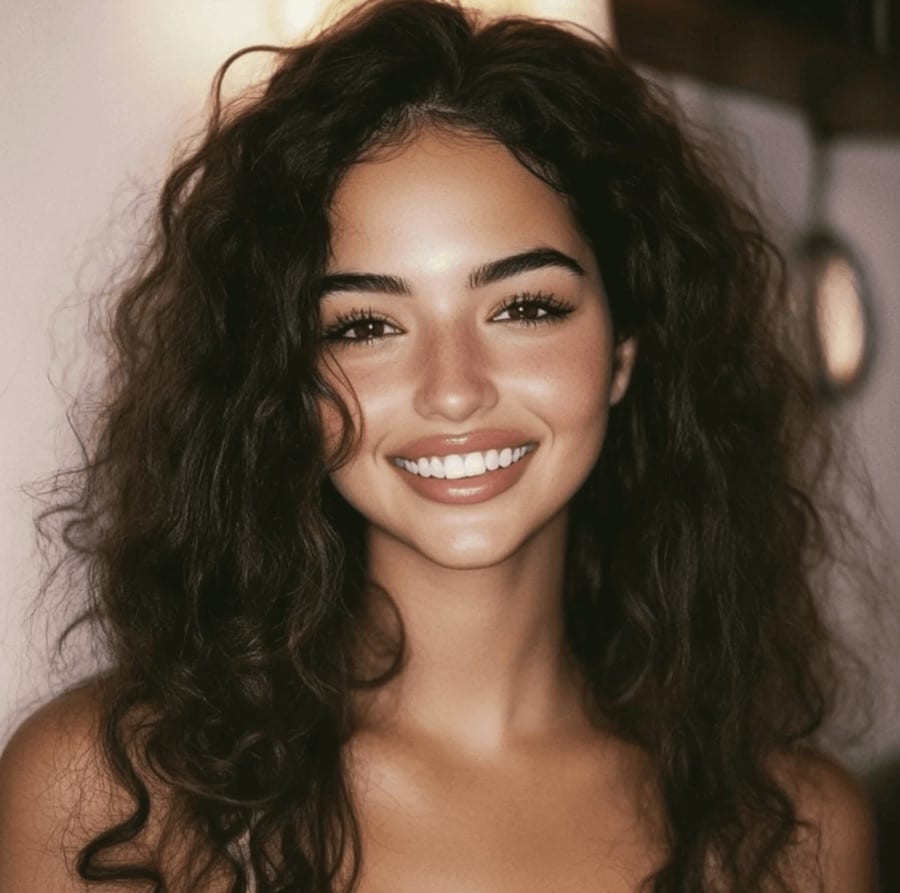
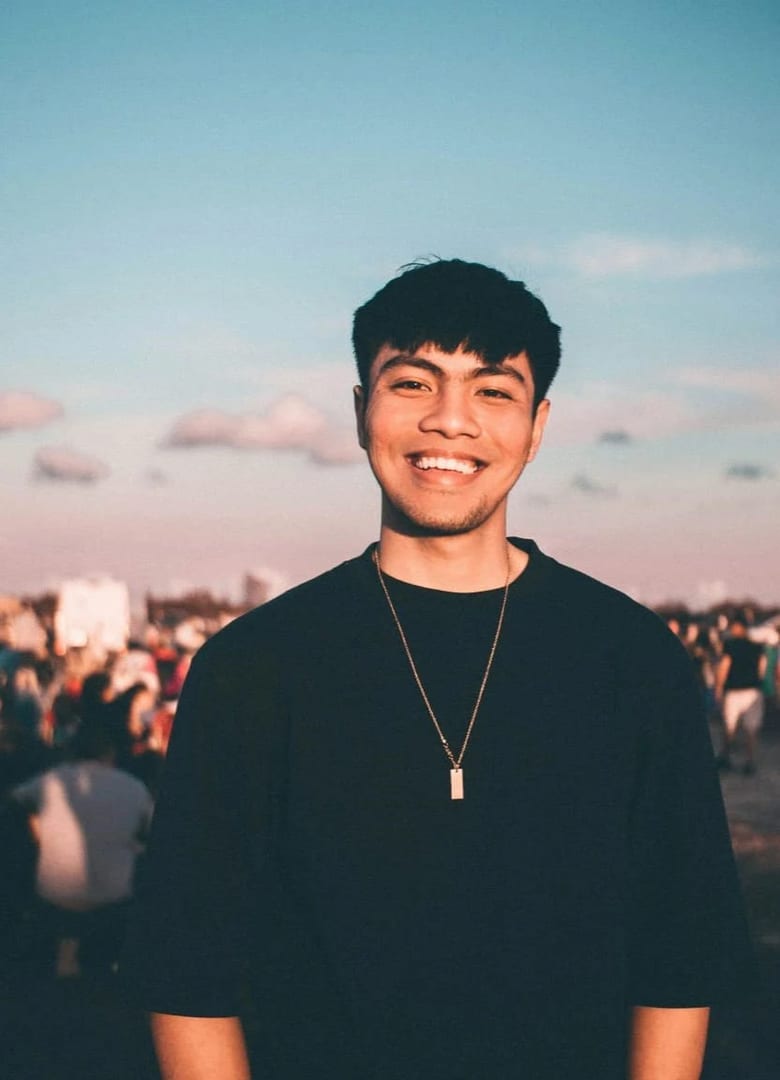
Change Hair Color & Style
Swap hair color or type.
 Before After
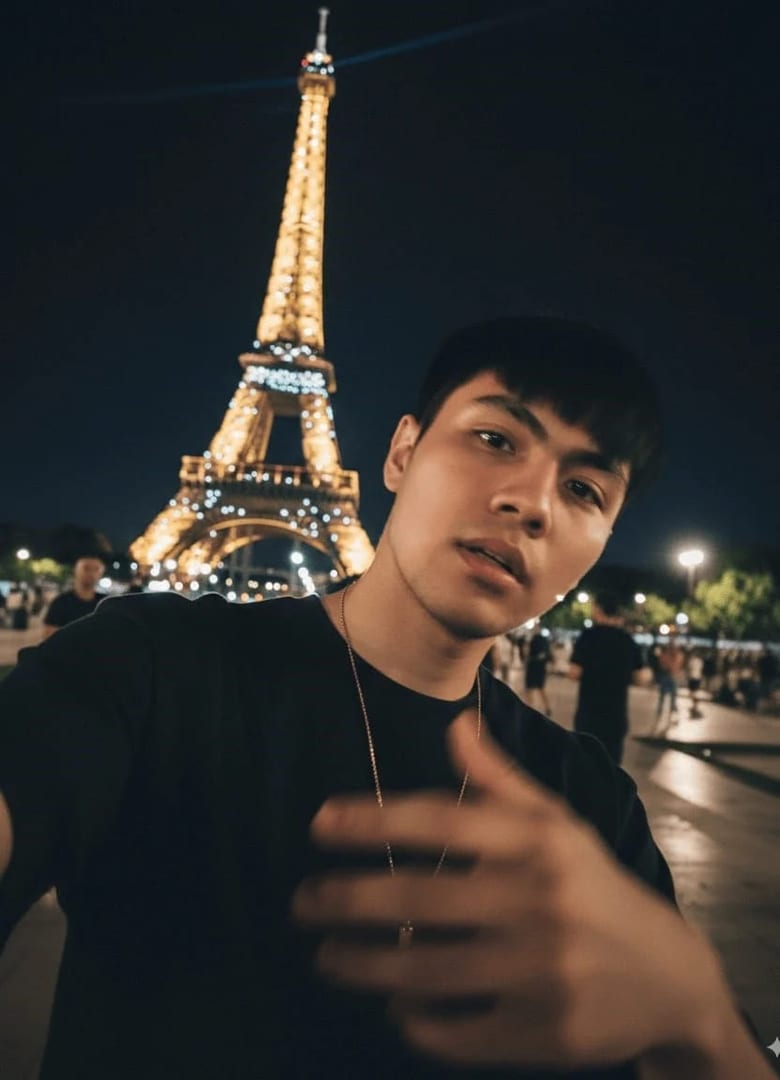
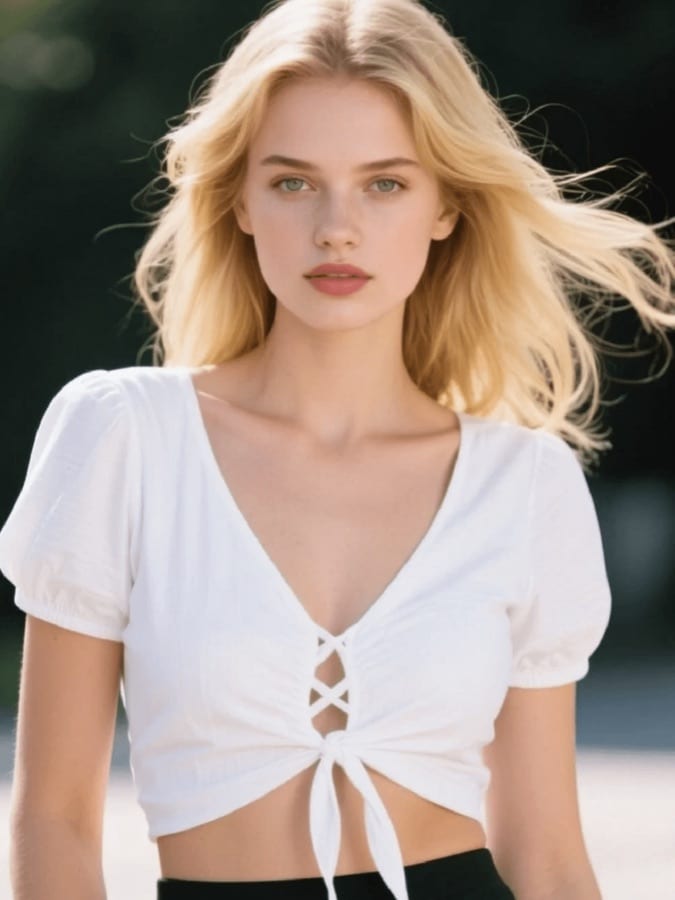
iPhone Selfies
Generate imperfect iPhone-style selfies.
 Before After
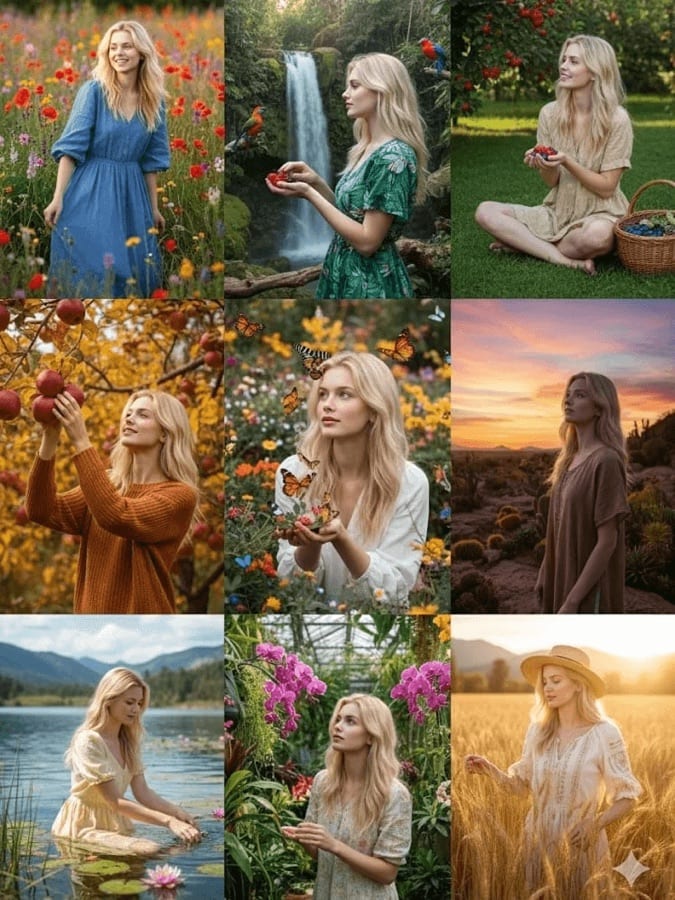
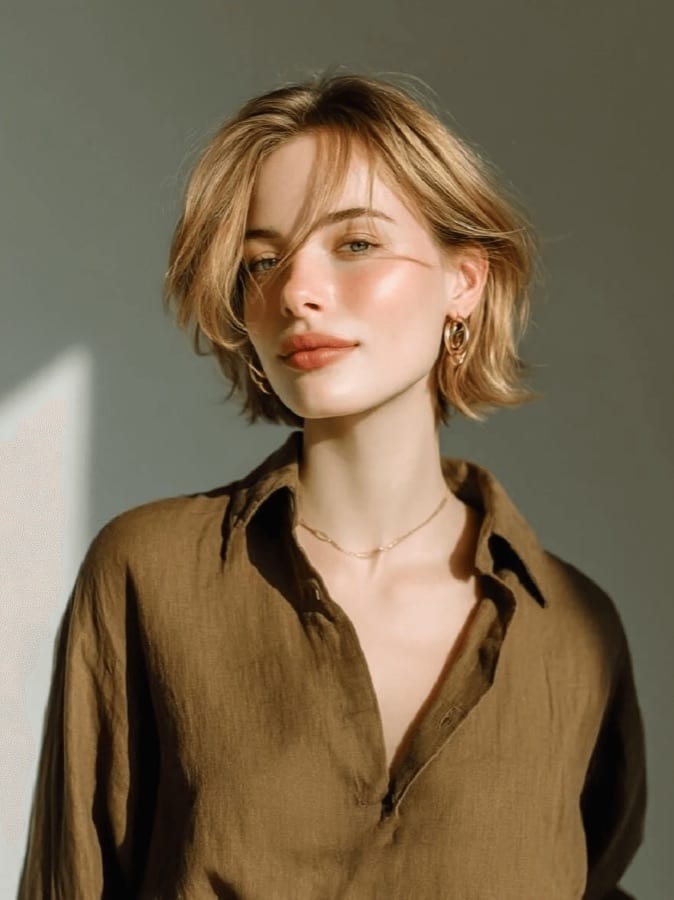
3x3 Grid Portrait
Produce nine nature-inspired portrait variations.
 Before After
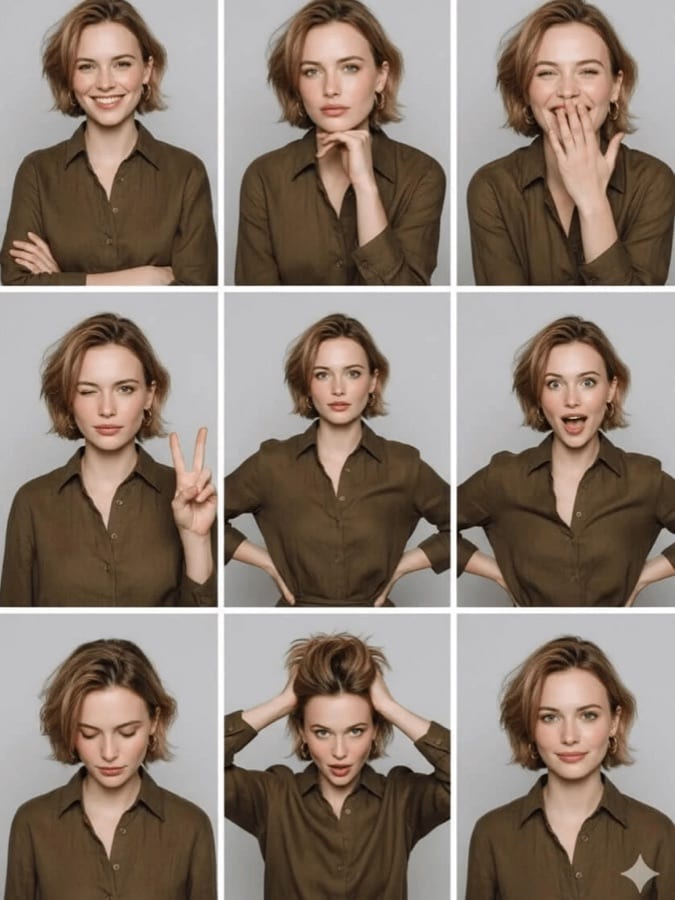
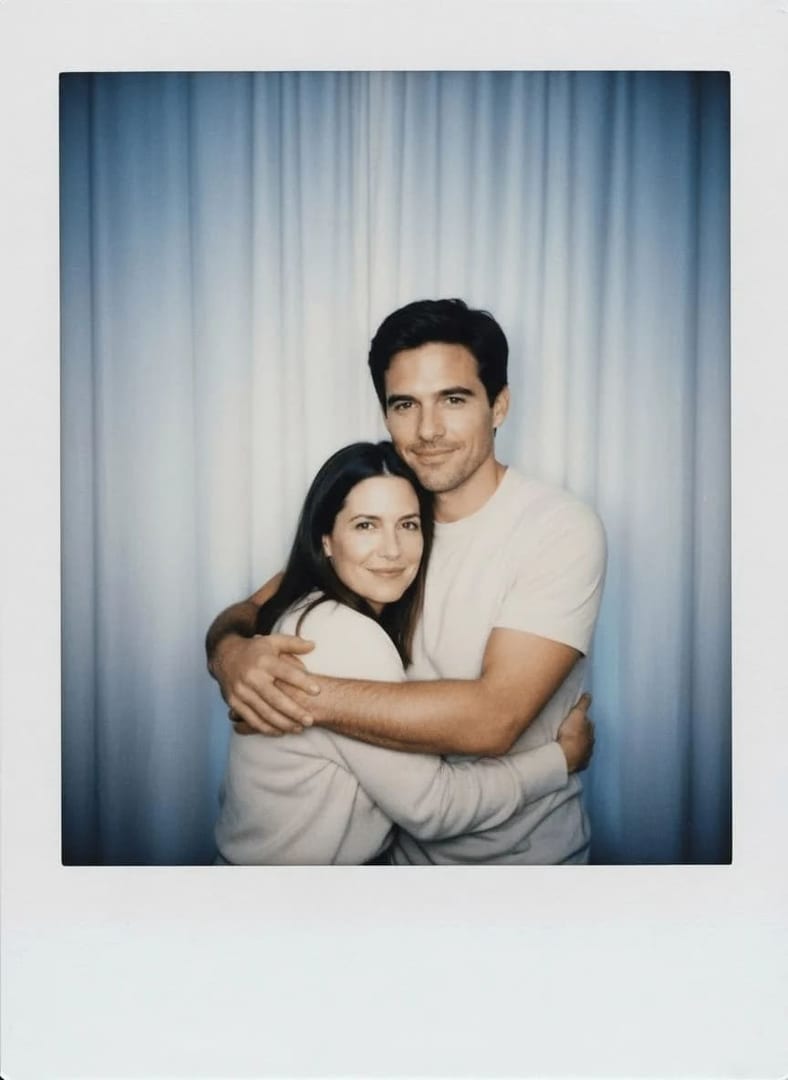
3x3 Photo Grid Pose
Display varied studio poses in a tiled grid.
 Before After
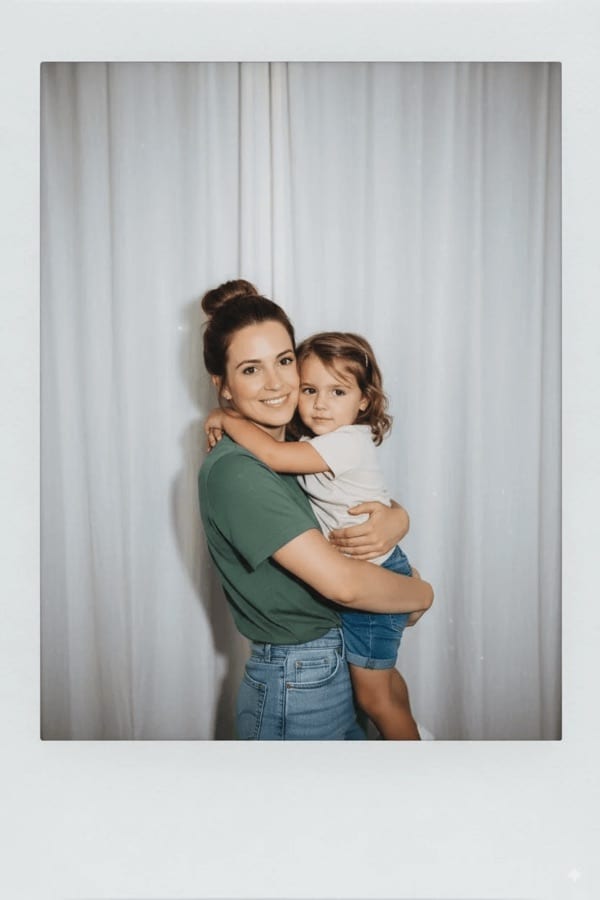
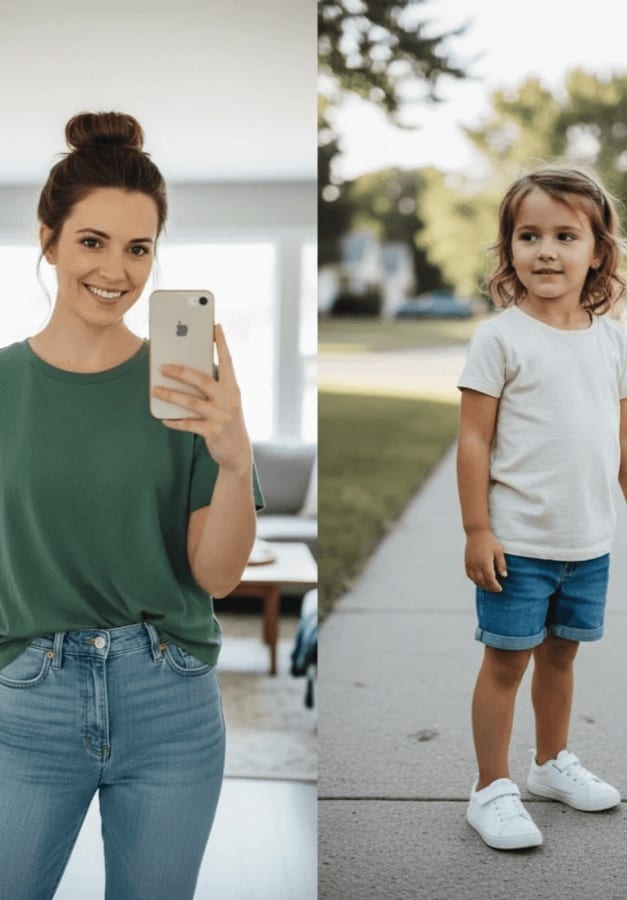
AI Polaroid-Style
Give photos a nostalgic Polaroid aesthetic.
 Before After
AI Hug Younger Self
Create heartfelt portraits across timelines.
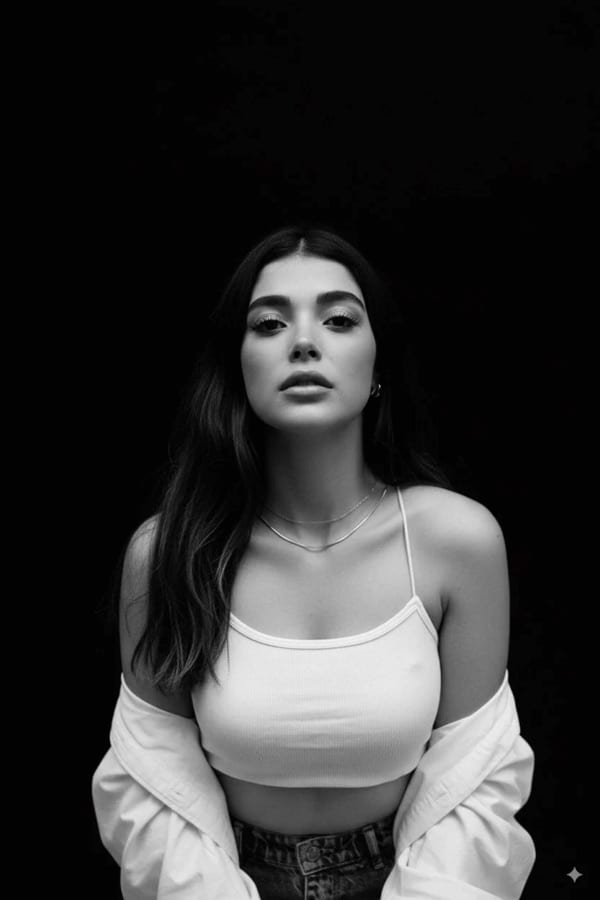
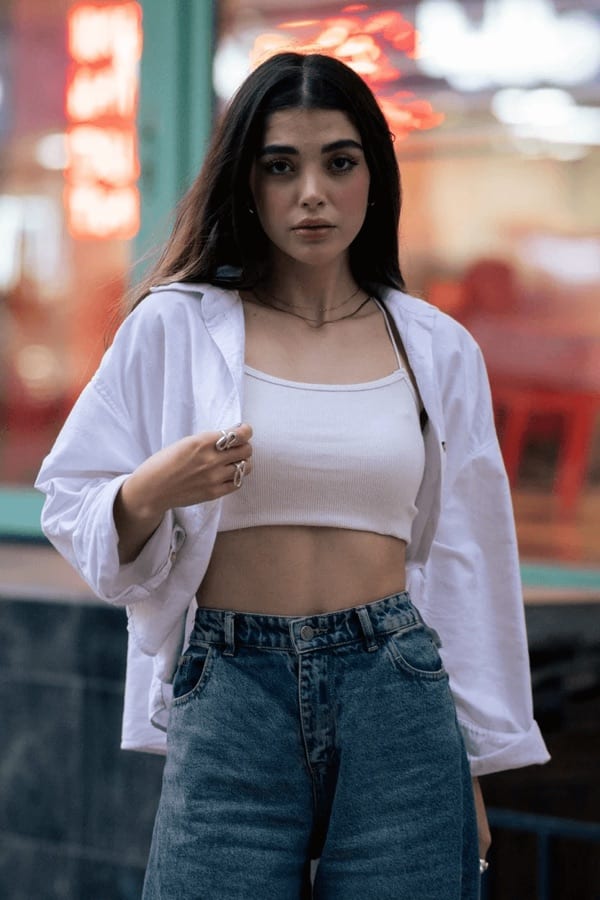 Before After
AI B&W Studio Portrait
Produce dramatic black-and-white studio shots.
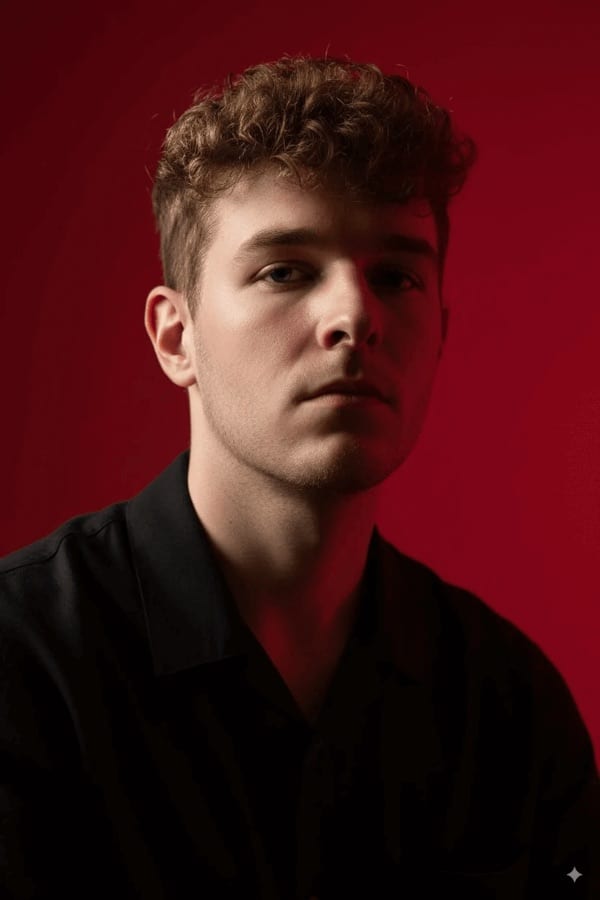
 Before After
AI Cinematic Portrait
Add bold cinematic lighting and drama.
Make headshots & portraits in three steps
- 1
Choose a tool
Open Headshots & portraits in Luren AI and pick the tool you want. Every tile shows a real result.
- 2
Add your photo
One clear photo from your camera or gallery. Some tools also let you describe the change.
- 3
Save and share
Your result lands in History. Save it, share it, or turn it into a video.
More tools
Headshots & portraits: questions
How do I make headshots & portraits with AI?
Open Luren AI, go to the Headshots & portraits collection, pick one of its 10 styles and add a clear photo of yourself. The app returns the finished picture in under a minute, and you can try another style on the same photo straight away.
How many photos do I need?
Just one. Luren AI does not train a model on a batch of selfies: a single, clear, well-lit photo of your face is enough. Front-facing photos with nothing covering the face give the most recognisable results.
What are headshots & portraits good for?
People use them for LinkedIn, CVs, team pages and social profiles. Every result is yours to save and share.
Is it free?
Luren AI is free to download and new users can try it for free. After that you pay per creation with coins, or subscribe to Pro.
Make your own headshots & portraits
Free to download on iPhone and Android. Pick a style, add one photo, and see yourself in it in under a minute.
Download & claim your FREE AI generation