These editing prompts change one thing in your photo and leave everything else alone: restore an old print, swap a background, relight a scene or remove a stranger. Add the photo, paste the prompt and pick a model that is good at precise edits; each prompt says what must stay the same as clearly as what should change.
Restore this old photo: remove scratches, dust and creases, repair the torn corner, sharpen the faces without changing anyone's features, balance the faded contrast, and keep the original grain and black-and-white tone so it still feels authentic.
02
Colorize black and white
Colorize this black-and-white photo with natural, period-appropriate colors: realistic skin tones, muted fabrics and a soft sky. Keep every face, expression and detail exactly as it is, and avoid oversaturated or plastic-looking color.
03
Change the background
Replace the background of this photo with [new background], match the light direction and color temperature on my face and clothes to the new scene, add a natural soft shadow, and keep my pose, face and hair edges exactly the same.
04
Change the outfit
Change my outfit to a tailored navy suit with a white shirt. Keep my face, hair, pose, hands and the background unchanged, and make the fabric fold naturally with the same light falling on it as on the rest of the photo.
05
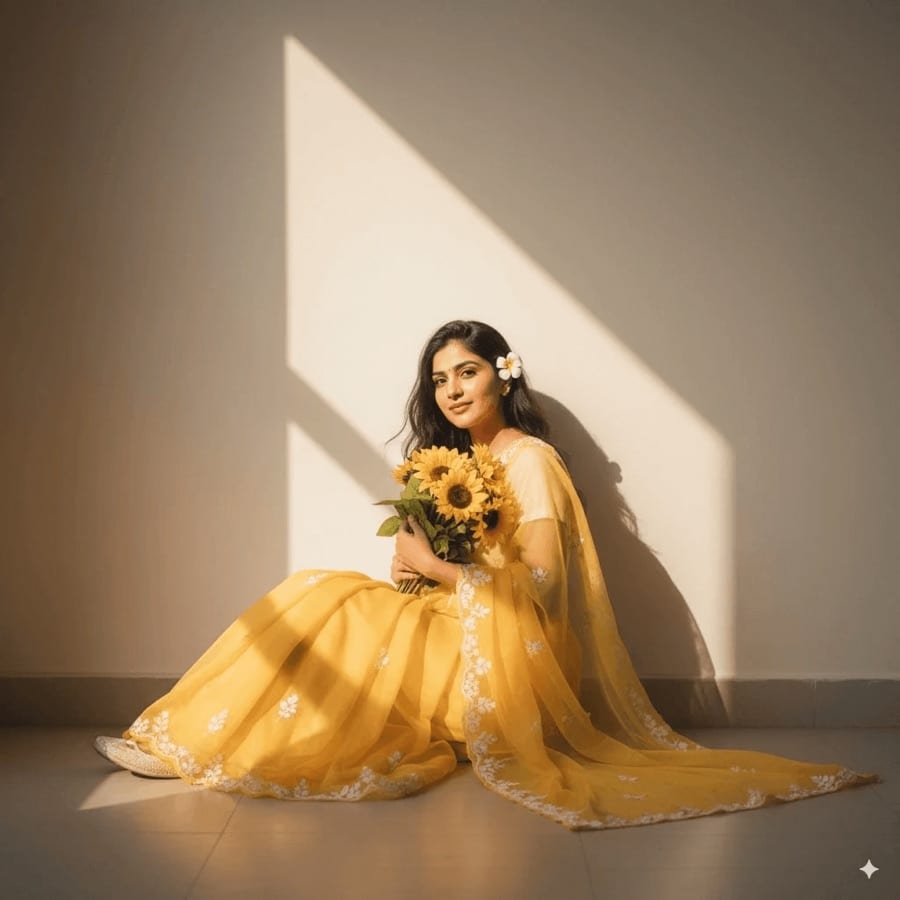
Relight to golden hour
Relight this photo as if it were taken at golden hour: warm low sunlight from the right, a soft glow on my skin and hair, longer shadows and slightly warmer whites, while my face, expression and everything in the scene stay where they are.
06
Remove background people
Remove the people walking in the background behind me and fill the space with the street and buildings that would naturally be there, matching the perspective, texture and light, with no blurry patches or repeated patterns.
07
Extend the frame
Extend this photo outward into a wider landscape frame, continuing the beach, sky and horizon naturally on both sides, matching the grain, light and colors of the original, and keep me exactly where I am in the center.
08
Fix a dark indoor photo
Fix this dark, underexposed indoor photo: brighten the shadows, correct the yellow cast to neutral white and reduce noise, keeping skin natural rather than smoothed, and do not change any faces or the composition.
09
Remove glasses glare
Remove the glare and reflections from my glasses so my eyes are clearly visible, keep the frames, the shape of my eyes and my expression exactly the same, and leave the rest of the photo untouched.
10
Change hair color
Change my hair color to a soft copper red with natural highlights and slightly darker roots, keep my haircut, hair length, face and skin tone exactly the same, and make the color look realistic in this light.
11
Replace a dull sky
Replace the dull grey sky with a dramatic pink and orange sunset, relight the landscape and my face with matching warm light, and keep the horizon line, the buildings and my pose unchanged.
12
Sharpen a blurry photo
Sharpen this slightly blurry photo and bring back detail: crisp eyes, hair and fabric texture, clean edges and fewer compression artifacts, without changing anyone's face or adding a painted, over-processed look.
13
Erase clutter
Remove the trash can and the power lines from this photo, rebuild the wall and sky behind them seamlessly, and keep everything else, including the people, colors and shadows, exactly as it is.
14
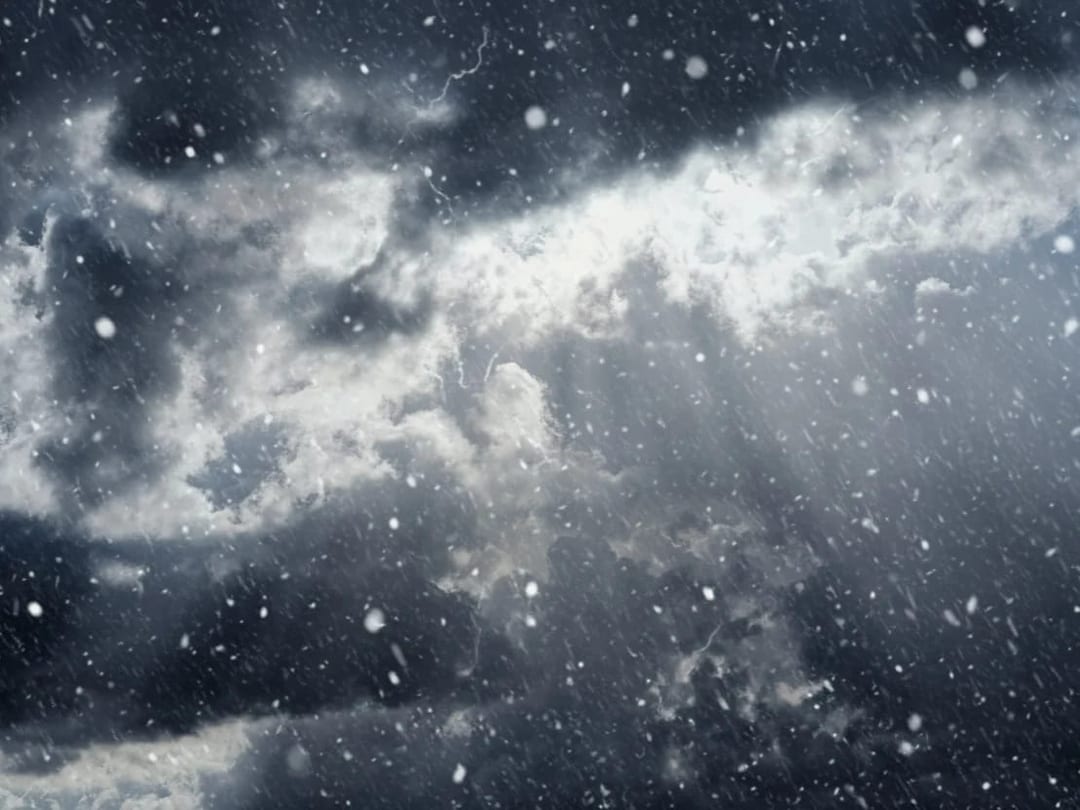
Summer to winter
Turn this summer photo into winter: add fresh snow on the ground, trees and rooftops, a soft overcast sky and light falling snow, change my clothes to a warm coat and scarf, and keep my face and pose unchanged.
15
Selfie to profile picture
Turn this casual selfie into a clean profile picture: crop to head and shoulders, blur the messy background into soft neutral tones, even out the light on my face, and keep my features, skin texture and expression natural.
No prompt needed
Or tap a ready-made style
These come from the AI photo editor collection in Luren AI: add one photo and the style does the rest.
What is the difference between editing a photo and generating a new one?
An edit keeps your photo and changes only what you describe, such as the background, the light or an outfit. A generation creates a new scene and uses your photo mainly as a face reference, so much more of the picture changes.
How do I stop the AI from changing my face during an edit?
State what must stay the same as clearly as what should change, for example 'keep my face, pose and background unchanged', and make one change at a time. In Luren AI, GPT Image 2.5 Sunburst is built for precise edits over several rounds.
Can AI restore and colorize old family photos?
Yes. Restoration removes scratches, dust and fading and can sharpen faces, and colorizing adds natural color to a black-and-white picture. Photograph or scan the original flat, in even light and without glare, for the best result.
Paste it, add your photo, pick a model
Free to download on iPhone and Android. Pick a style, add one photo, and see yourself in it in under a minute.