
AI Easter photos: pastel, playful and glam
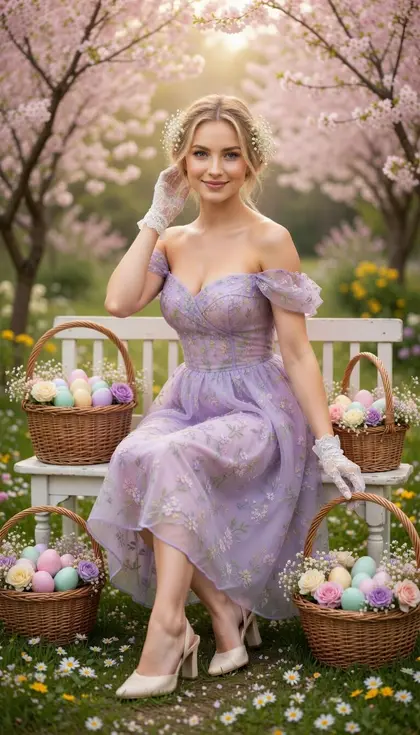
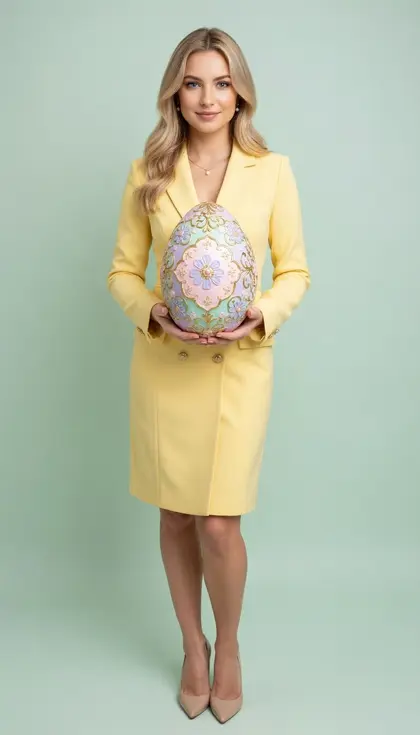
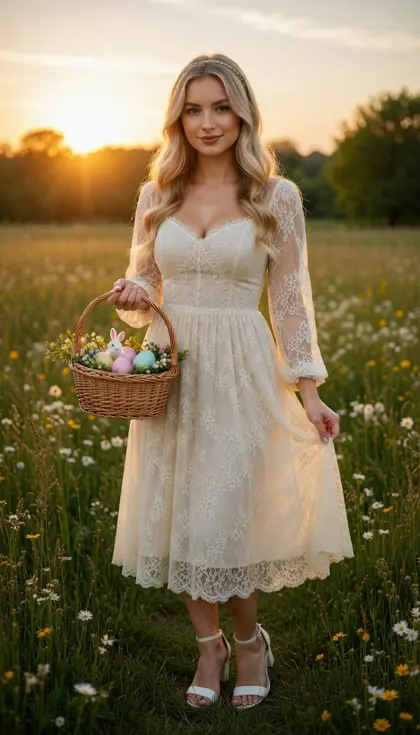
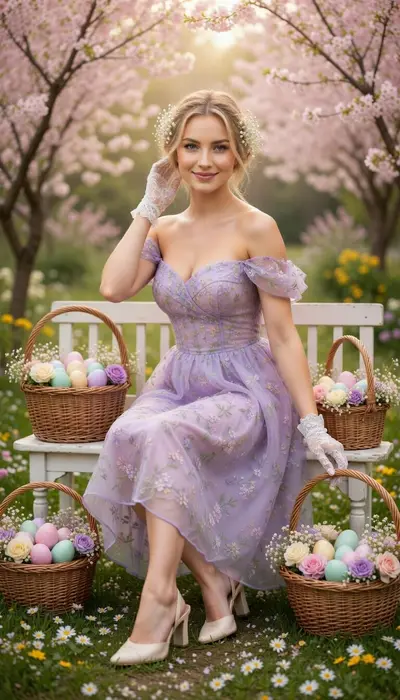
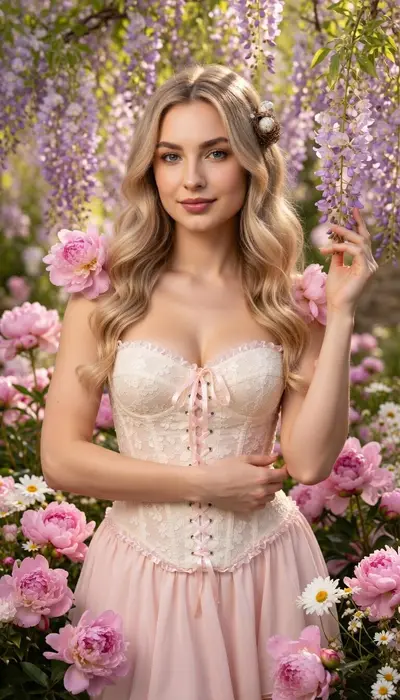
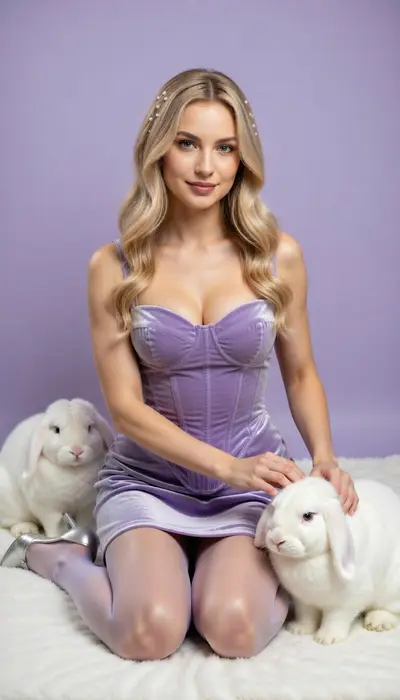
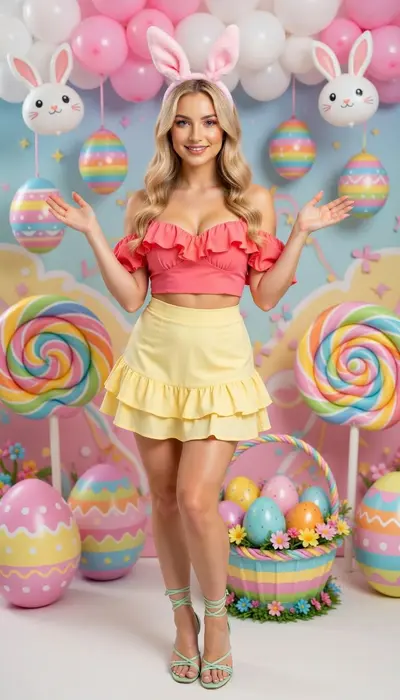
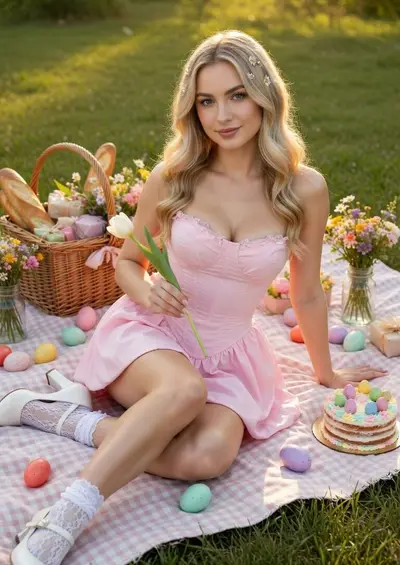
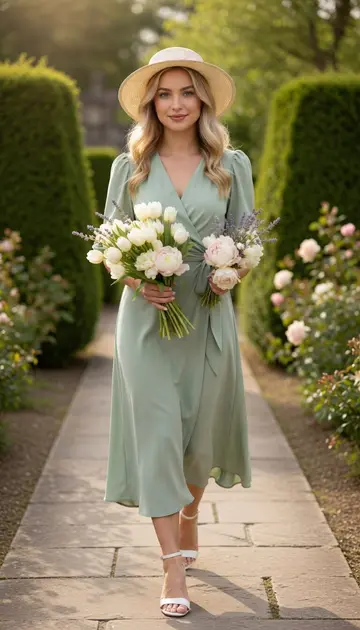
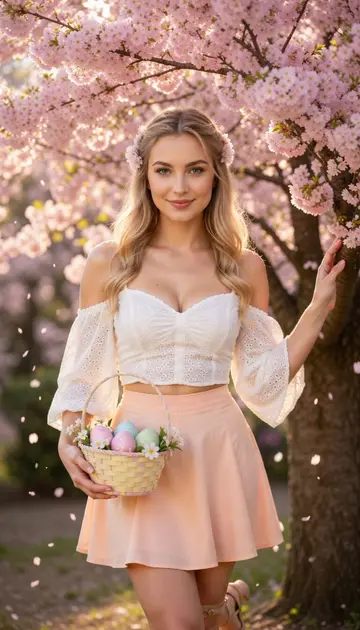
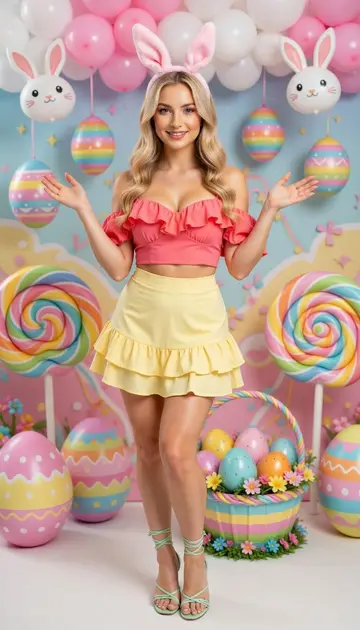
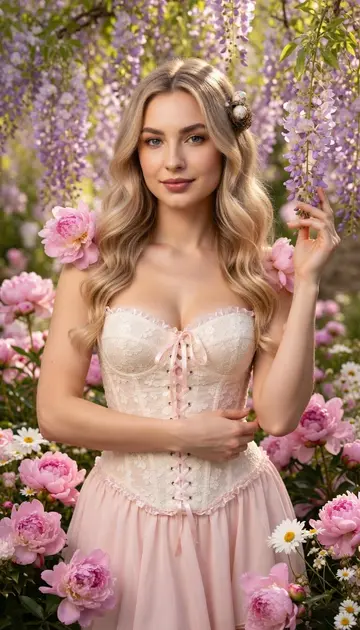
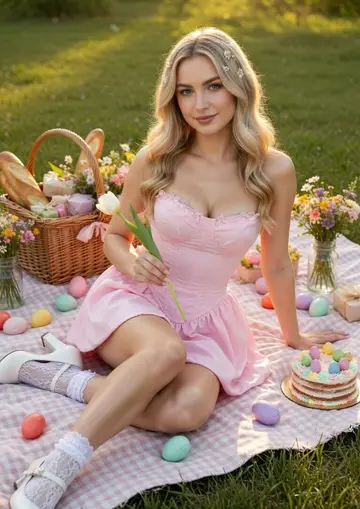
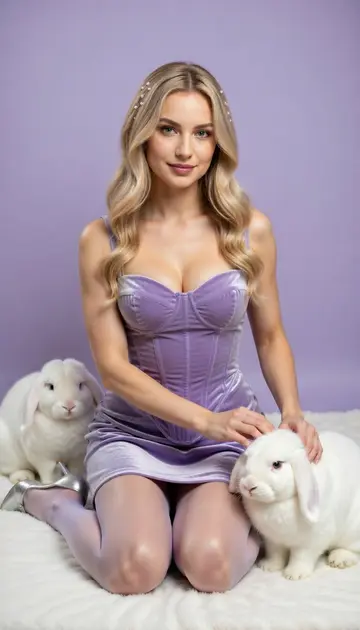
Soft pastels, painted eggs and spring blossoms, styled like an editorial rather than a greeting card. Choose a set, add a photo of your face, and get an Easter portrait in seconds.
Download & claim your FREE AI generation
Updated
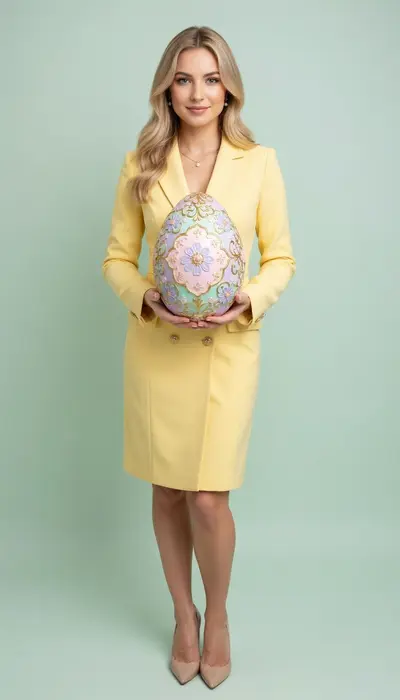
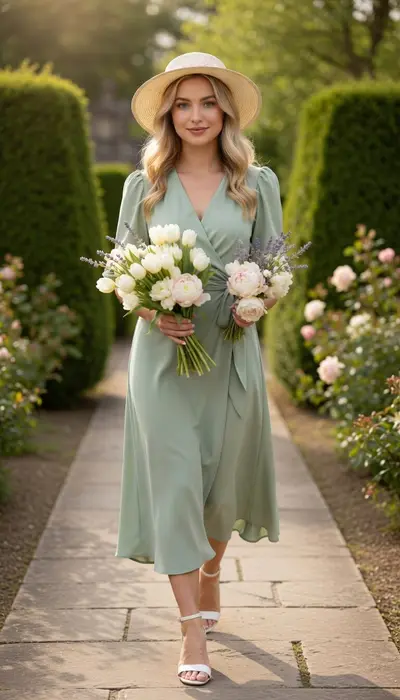

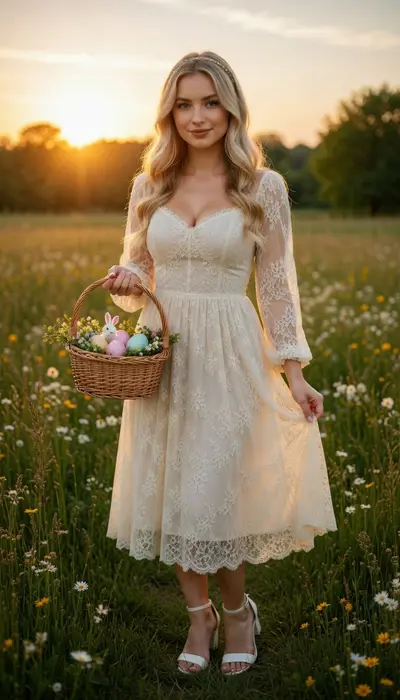
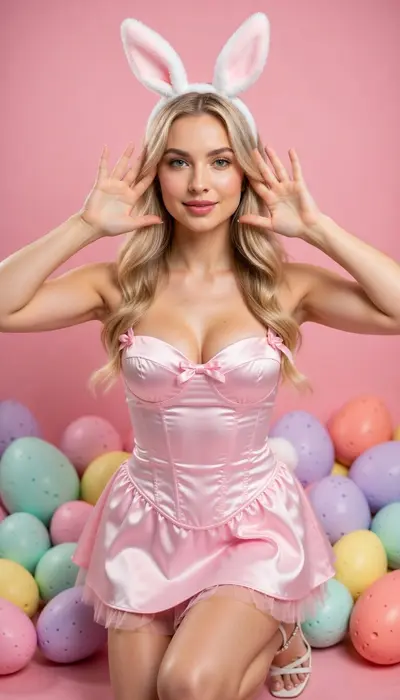
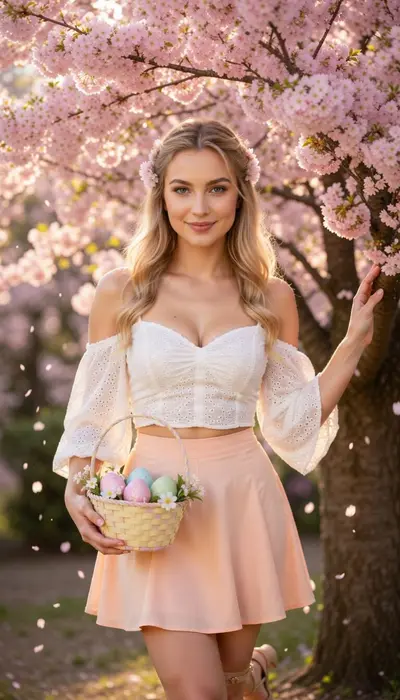
Make easter photos in three steps
- 1
Choose a style
Open Easter photos in Luren AI and pick the look you want. Every tile shows a real result.
- 2
Add your photo
One clear photo from your camera or gallery. Some styles take a second person or a short note.
- 3
Save and share
Your result lands in History. Save it, share it, or turn it into a video.
More collections
Easter photos: questions
How do I make easter photos with AI?
Open Luren AI, go to the Easter photos collection, pick one of its 11 styles and add a clear photo of yourself. The app returns the finished picture in under a minute, and you can try another style on the same photo straight away.
How many photos do I need?
Just one. Luren AI does not train a model on a batch of selfies: a single, clear, well-lit photo of your face is enough. Front-facing photos with nothing covering the face give the most recognisable results.
What are easter photos good for?
People use them for Easter posts, spring greetings and pastel-themed feeds. Every result is yours to save and share.
Is it free?
Luren AI is free to download and new users can try it for free. After that you pay per creation with coins, or subscribe to Pro.
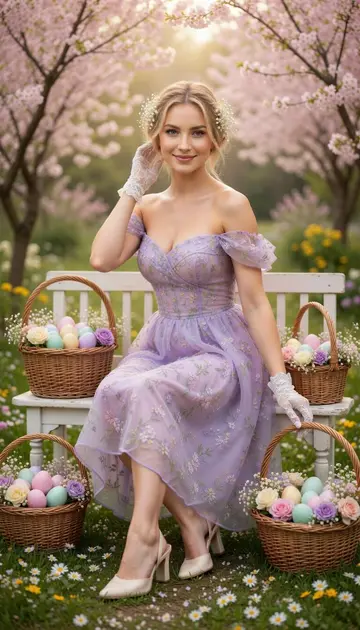
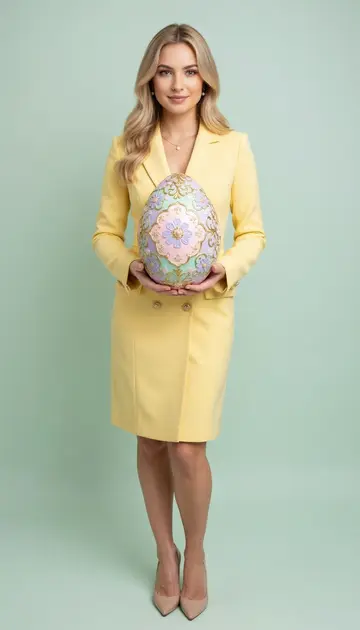
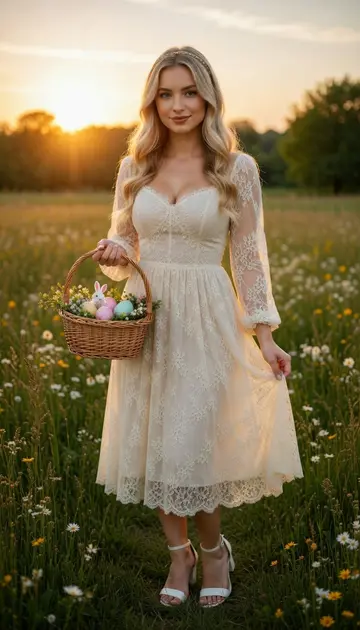


Make your own easter photos
Free to download on iPhone and Android. Pick a style, add one photo, and see yourself in it in under a minute.
Download & claim your FREE AI generation