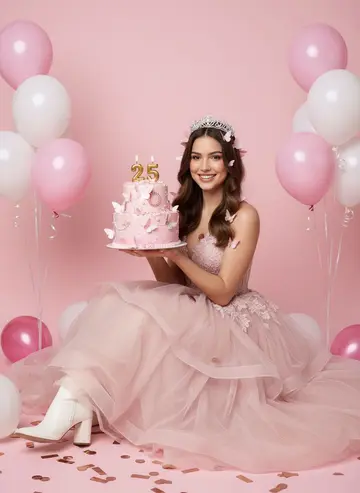
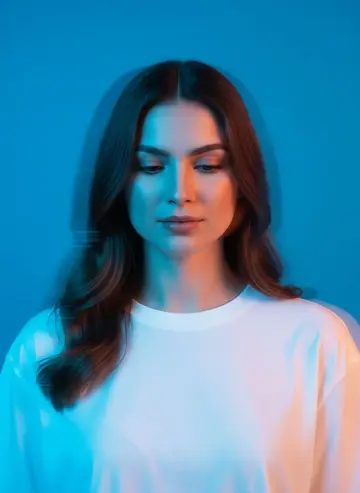
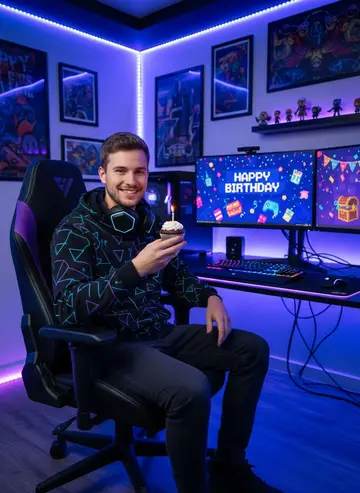
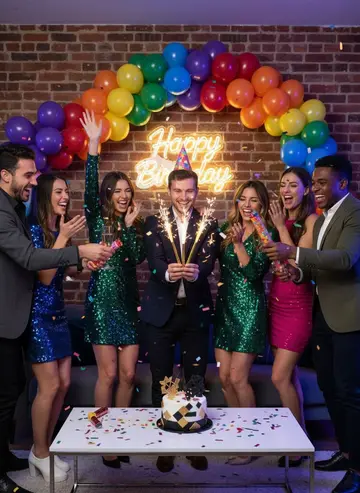
How do I turn a photo into a video in Luren AI?
Open the Video tab, choose Image to Video, add your photo and describe how it should move, then pick a model, the duration and the aspect ratio and generate. You can also tap Video on any image result to animate it straight away. The price in coins is shown on the generate button before you start.
Step by step
- Open the Video tab and choose Image to Video.
- Tap Add an image and pick a photo from your gallery, or take one with the camera.
- Describe how it should move: one main action, the camera movement and the mood.
- Choose the AI model, the duration and the aspect ratio. Some models also offer an end image or generated audio.
- Tap the generate button, which shows the price in coins. The finished video appears in History.
Animate an image you just made
On any image result, tap Video to open the video creator with that image already added. It's the quickest way to turn a style or a prompt result into a clip.
Which model to pick
Each model in the Video tab has its strengths, and the image-to-video prompts work with any of them:
- Veo 3.1 (Google): short cinematic clips with sound generated together with the picture, up to 4K.
- Kling (Kuaishou): photo animation up to 15 seconds, with an optional end frame.
- Seedance (ByteDance): quick animations, from 720p up to 1080p.
- Grok Imagine Video (xAI): clips with native audio.